
Melodyne’s Direct Note Access lets producers edit individual notes inside recorded chords and polyphonic textures.
Many producers and musicians confuse Melodyne with Auto-Tune, but the two tools serve different purposes. Auto-Tune is an audio effect designed to correct pitch by snapping notes to a defined scale. It’s widely used in modern music production, especially in pop, hip-hop, and electronic genres, and is often recognized for its distinctive, heavily processed sound. Artists like T-Pain, Black Eyed Peas, and Lil Wayne helped popularize that exaggerated Auto-Tune effect.
While both Auto-Tune and Melodyne can correct pitch, Melodyne goes far beyond simple tuning.
So what is Melodyne?
Celemony Melodyne is an advanced audio editing tool focused on pitch, timing, dynamics, and tonal manipulation. It runs inside most digital audio workstations or as a standalone application.
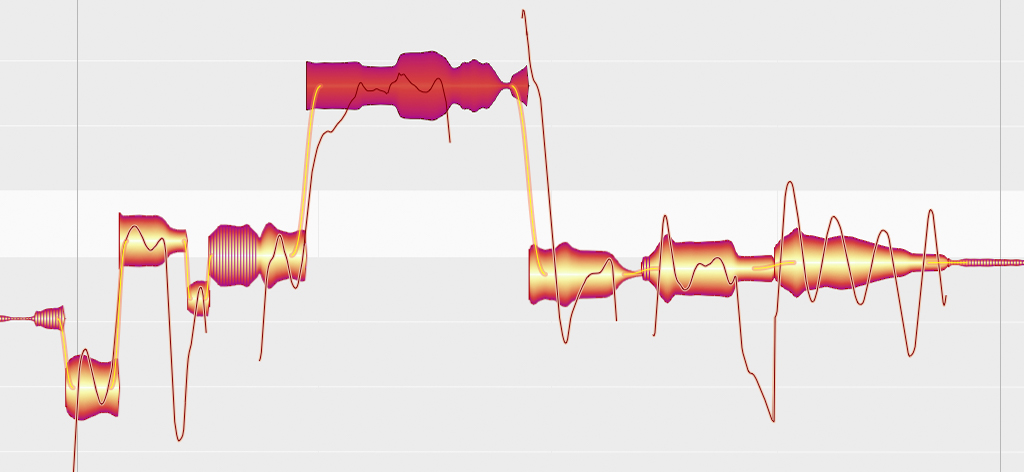
What makes Melodyne unique is its ability to treat audio recordings as individual notes, or “blobs.” In traditional digital audio workstations, we typically work with audio files and waveforms while recording or editing. Melodyne is able to analyze these audio files and translate them into notes, giving musicians a much more familiar interface - similar to working in a piano roll.
Melodyne can handle the same pitch correction tasks as Auto-Tune; but that’s only the starting point. Where Auto-Tune reaches its limits, Melodyne begins to open up deeper control over a recording. It allows you to shape not just pitch, but timing, harmony, dynamics, and even aspects of tone within an audio performance. It is a powerhouse tool with the ability to understand complex recordings and work with the fundamental elements of a musical recording: pitch, rhythm, melody, harmony, dynamics, timbre, texture, and form.
Why Melodyne DNA is unique
Why would we reach for Melodyne over any other digital audio workstation? On the surface it may seem like we can do everything we would ever need to do to an audio recording using programs we already have like Logic Pro X, Pro Tools, or Ableton. However, there is one specific technology that Melodyne has that is unmatched by any other audio editing software. Melodyne has DNA. And no, not that DNA (deoxyribonucleic acid), but musical DNA: Direct Note Access. Melodyne gives you control over editing individual notes within chords and polyphonic textures.
This is almost unheard of in the world of pitch editing outside of Melodyne. Most tools are limited to monophonic material: one note at a time, such as a vocal, a bass line, or a single drum hit. Polyphonic material, on the other hand, contains multiple notes sounding simultaneously, like piano chords, guitar strums, or vocal ensembles. Melodyne’s DNA algorithm can identify multiple notes within a polyphonic texture, giving you control over each one before putting it back together again for playback.
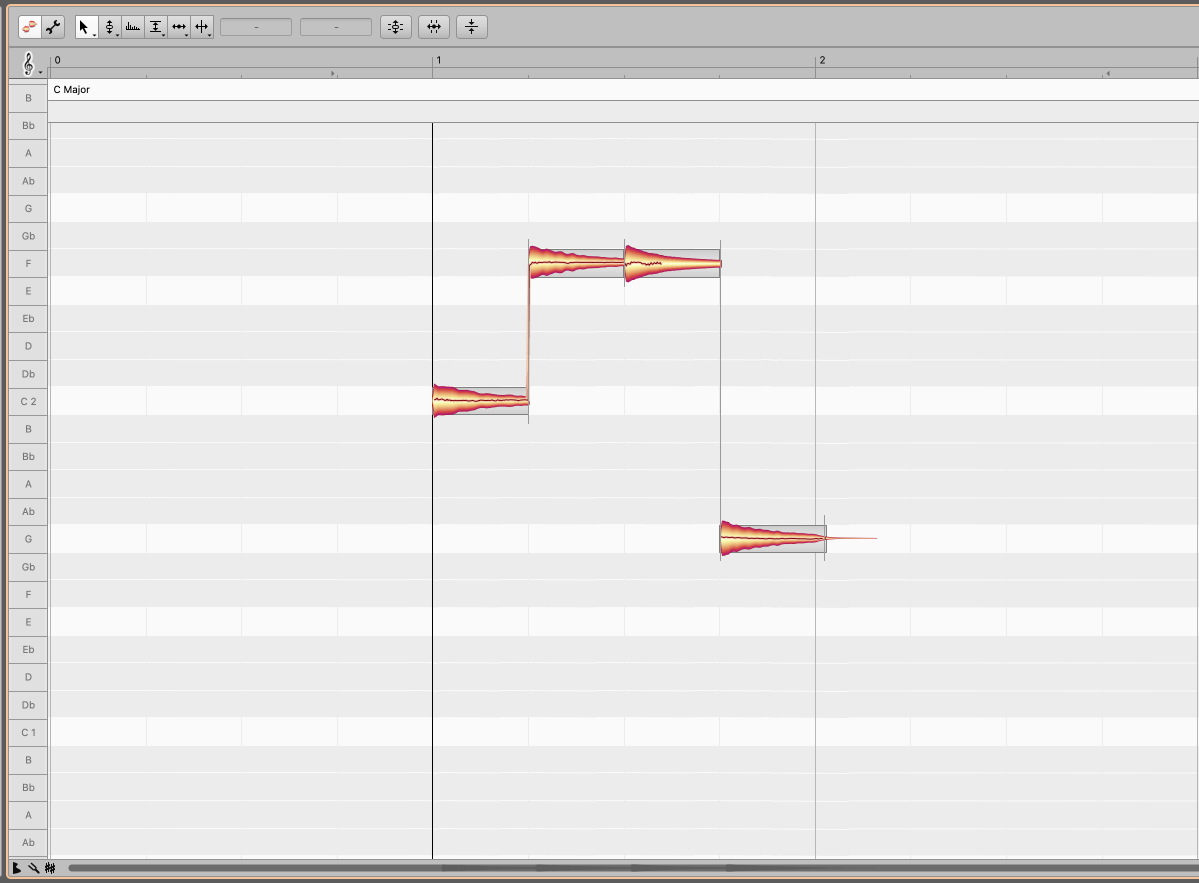
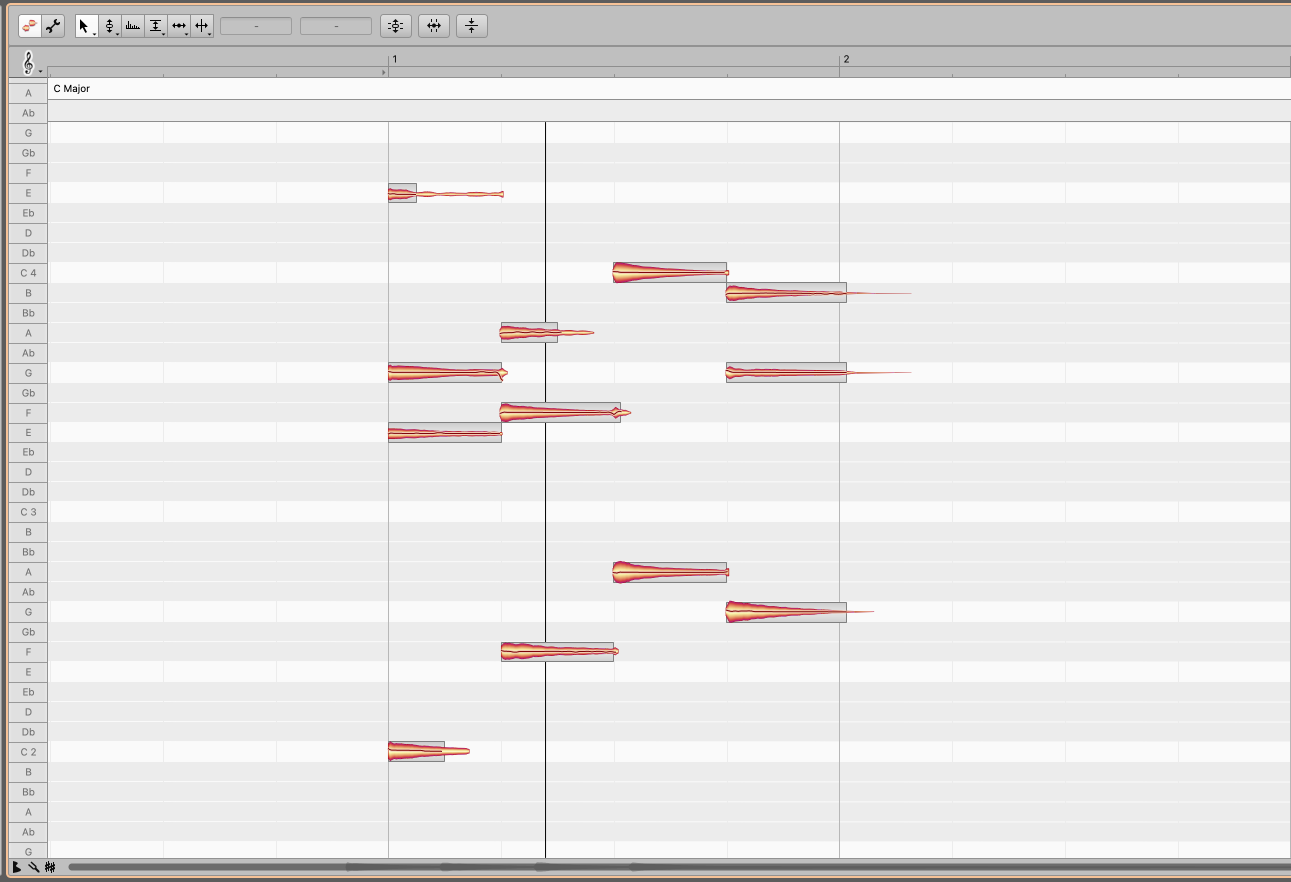
Images: Synthase.
What can I do with DNA and Melodyne Polyphonic?
You may be thinking, “This is cool, but can’t I just do this with MIDI?” The key difference here is that Melodyne can edit these notes after they have already been recorded. MIDI works with virtual instruments to communicate what notes a device should play and how it should play them before they’re recorded.
Using polyphonic mode in Melodyne, we can edit recordings, live performances, and fix mistakes that were previously impossible to fix. Maybe you recorded yourself on your favorite guitar before it mysteriously fell out of your bedroom window. Perhaps you have a singer and a pianist playing together into only one microphone; only Melodyne can help you now if you need to edit the individual notes within those recordings. You could fix that wrong guitar chord you didn’t have the chance to re-record; and you could tune the singing in that duet without disturbing the sound of the piano.
Changing piano chords
Tuning guitar chords
15 scenarios for using Melodyne polyphonic mode
- Fixing a single wrong note in a recorded piano chord
- Correcting one out-of-tune note in an acoustic guitar strum
- Tightening tuning in a live band performance without re-recording
- Adjusting chord voicings after recording by re-ordering or re-balancing the notes in a chord
- Changing the key of your track after recording, such as major to minor
- Reducing the volume of a single note that’s sticking out in a chord
- Adjusting the timing of individual notes within a chord
- Fixing a poorly tuned instrument, or one that drifts out of tune over time
- Subtly correcting notes in archival or live recordings
- Creating alternate harmonies from an existing recording
- Simplifying overly dense chords by muting or lowering specific notes
- Matching harmony between different takes or overdubs
- Stretching or shifting individual notes for texture or sound-design effects
- Experimenting by manipulating parts of polyphonic textures beyond their naturally occurring envelopes
- Isolating rehearsal recordings to identify problems and solutions in a composition
How do we use Melodyne Polyphonic?
Melodyne’s polyphonic mode can be used inside most digital audio workstations or in the standalone application. The basic workflow is straightforward:
- Load your audio into Melodyne. In most DAWs, such as Pro Tools, this is done by inserting Melodyne on a track or right-clicking an audio clip and opening it with the built-in Melodyne editor.
- Select the correct algorithm. Once the audio is loaded, choose how Melodyne analyzes the file:
- Polyphonic Sustain: best for sustained sounds like strings, choirs, synths, brass, or organs.
- Polyphonic Decay: best for percussive or naturally decaying sounds like piano, guitar, harp, or mallet instruments.
- Let Melodyne analyze the audio. Once Melodyne has analyzed the file, use its existing tools to edit the pitch, timing, dynamics, and timbre of each individual note. Pretty cool!
Watch these demonstrations of setting up Melodyne in polyphonic mode and making changes to an existing recording.
Setting up polyphonic mode
Using polyphonic mode in Pro Tools
Best use cases and limitations
Melodyne polyphonic mode works best with instruments like piano, guitar, choir, and other polyphonic sources with a relatively clean sound. When editing more distorted or noisy sounds like electric guitars or drums, Melodyne can often struggle to separate the pitches properly - often misinterpreting one note for another, combining what should be two notes into one blob, or missing notes that should have been identified.
Another factor in the success of Melodyne’s polyphonic mode is the space the audio is recorded in. Recordings with a lot of reverb, delay (acoustic or digital), or other effects can also cause Melodyne to struggle with note identification. Simpler and clearer recordings will yield much better results. Close-mic’d recordings tend to work much better than distant recordings in these scenarios. Always try to use Melodyne before any mixing effects are added. It is particularly effective when working with isolated tracks (stems) rather than full mixes, and when applied before heavy processing. Melodyne is never perfect, but it’s an amazing tool when set in the right conditions.
When a recording works - and when it doesn’t
Have fun!
Melodyne’s DNA technology and polyphonic mode open up a huge range of possibilities for both corrective editing and creative sound design. Its biggest strength is the ability to work with individual notes inside recorded chords and polyphonic textures, making it incredibly useful when a performance cannot be re-recorded or when you want to reshape an existing take in a precise way. It will definitely save the day when you need to handle must-fix problems, but it’s also a tool to be creative with.
See what happens when you pitch the highest note of a piano chord down two octaves. See what happens when you extend the notes of a guitar chord by a whole minute. These experimental effects can yield some very interesting results, and create sounds unlike anything you’ve ever heard.
Mastering Melodyne will make you a force to be reckoned with in the music production world. Even though Melodyne polyphonic modes are only available to users with the editor and studio versions, it is certainly a worthy investment for the power that you gain with Melodyne’s DNA algorithms. Whether you are repairing a performance, changing harmony after the fact, or pushing recorded sound into more experimental territory, Melodyne polyphonic mode is one of the most powerful editing tools available to modern producers and musicians.
Happy editing!